
Chat, files & replay
Attach files and images
Section titled “Attach files and images”Click the paperclip, paste, or drag files onto the composer (up to 10 MB each):
| File | Sent to the model as |
|---|---|
| Images | An image part (for vision models) |
| Text, Markdown, JSON, CSV, code | Inline text wrapped in <file name="…"> |
| PDFs | The PDF itself to models that read PDFs (OpenAI, Anthropic, Gemini, Azure). Every other model (LM Studio, Ollama, gateways) gets its text, page by page |
Word (.docx) | Its text, as Markdown (headings, lists, tables) |
| Anything else | A file part for models that accept it, otherwise a note saying the model can’t read it |
Moka reads the text out of PDFs and Word files in your browser when you attach them, so nothing is uploaded anywhere. A PDF of scanned pages has no text to read; Moka tells the model so.
A2A agents receive attachments as FileParts. AG-UI agents get text and a note about the attachment.
Preview files next to the chat
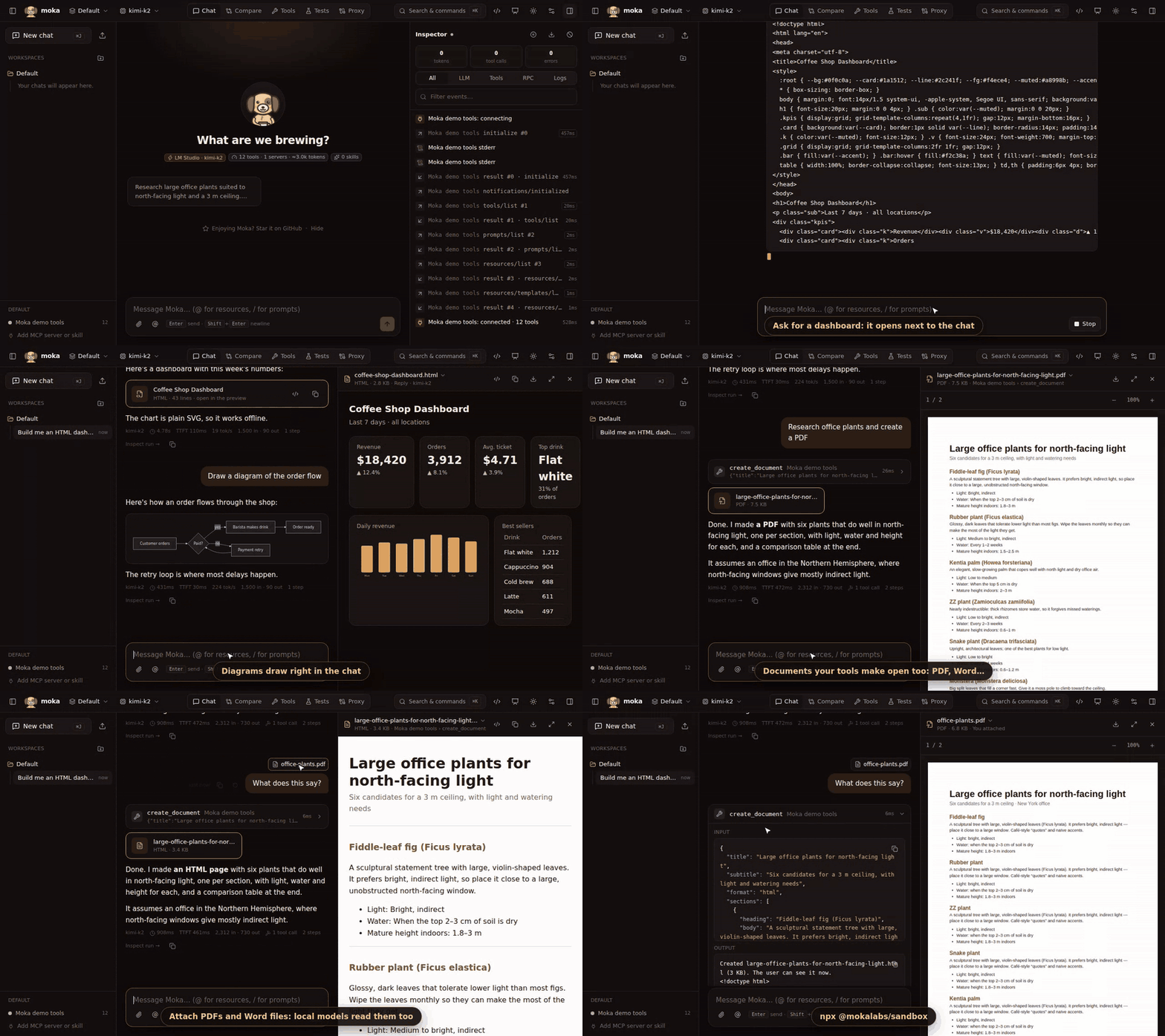
Section titled “Preview files next to the chat”Click an attachment, or a file a tool returned, and it opens in a pane next to the chat. When a tool makes a document (PDF, Word, HTML, Markdown or CSV), it opens there on its own, like a file an agent just made for you.
| Type | Shown as |
|---|---|
| Its pages, with zoom (drawn by pdf.js, in every browser) | |
Word (.docx) | Its text, formatted |
| HTML | The page, in a sandbox with no access to Moka. </> shows its source |
| Markdown, CSV / TSV, JSON | Formatted, as a table, or as a tree |
| Images, SVG, audio, video | As themselves |
Mermaid (.mmd) | The diagram |
| Code and other text | As text |
The name at the top of the pane lists every file in the chat, to switch between them. Drag the pane’s edge to resize it; ⤓ downloads the file and × closes the pane.
Try it with the demo server: ask “Make a PDF about office plants for north light”. Its create_document tool writes PDF, Word, HTML or Markdown files.
Pages and diagrams in replies
Section titled “Pages and diagrams in replies”When a model writes HTML, SVG or a Mermaid diagram in its answer, Moka shows it instead of a wall of code:
- Mermaid and SVG are drawn right in the chat. Hover for Show code or Open in the preview pane.
- A whole HTML page (a dashboard, a landing page, a report) shows as a card and opens in the preview pane on its own when the reply finishes. Show code is on the card.
- HTML snippets keep their code block, with a Preview button.
Ask “Make me an HTML dashboard for…” or “Draw a diagram of…” with any model, local ones included: no tool needed.
HTML runs in a sandbox with no access to Moka, its API or your token. If a page loads anything from the network (a chart library from a CDN, fonts), a banner says from which hosts, and Block shows it offline instead. Use Expand (⤢) to give a page most of the screen.
Return files from your MCP server
Section titled “Return files from your MCP server”Moka shows any of these in a tool result as a file:
- Images and audio:
{ "type": "image", "data": "<base64>", "mimeType": "image/png" } - Embedded resources:
{ "type": "resource", "resource": { "uri": "file:///out/report.pdf", "mimeType": "application/pdf", "blob": "<base64>" } }, ortextinstead ofblobfor text files. The file name comes from the URI. - Resource links:
{ "type": "resource_link", "uri": "…", "name": "report.pdf", "mimeType": "application/pdf" }. Moka reads the resource from your server when the file is opened.
Resources with a ui:// URI are interactive UIs, shown in the chat instead (see MCP Apps).
MCP resources: @
Section titled “MCP resources: @”Type @ (or click the @ button) to list every resource from the workspace’s connected servers. Keep typing to filter (@brew), press Enter to attach the top match, or Esc to cancel. Pick one and its contents are attached as <resource uri="…">, which is handy for feeding a doc, a schema or a log to the model.
MCP prompts: /
Section titled “MCP prompts: /”Type / in an empty composer to see prompts from the workspace’s servers. Picking one asks for its arguments (if any) and inserts the rendered prompt into the composer so you can edit it before sending. Try /plan-a-trip with the demo server.
Run a message again
Section titled “Run a message again”Hover a message you sent to see when you sent it and two actions:
- Run again (↻) sends it again. On an earlier message, it replaces the replies after it.
- Copy copies its text.
To change it first, press ↑ in an empty message box: your last message comes back, ready to edit.
Replay a chat
Section titled “Replay a chat”Hover a chat in the sidebar and press ▶ to replay it: messages type out, tool cards run and UIs appear, all from the saved chat, without calling any model or tool. Use it for demos on bad Wi-Fi, or to walk someone through a flow at your own pace. Stop ends the replay and leaves the full chat in place.
Export & import
Section titled “Export & import”- ⤓ next to a chat downloads it as JSON (messages, tool calls, UI and model history).
- ⤒ at the top of the sidebar imports one, ready to replay or continue.