
MCP servers
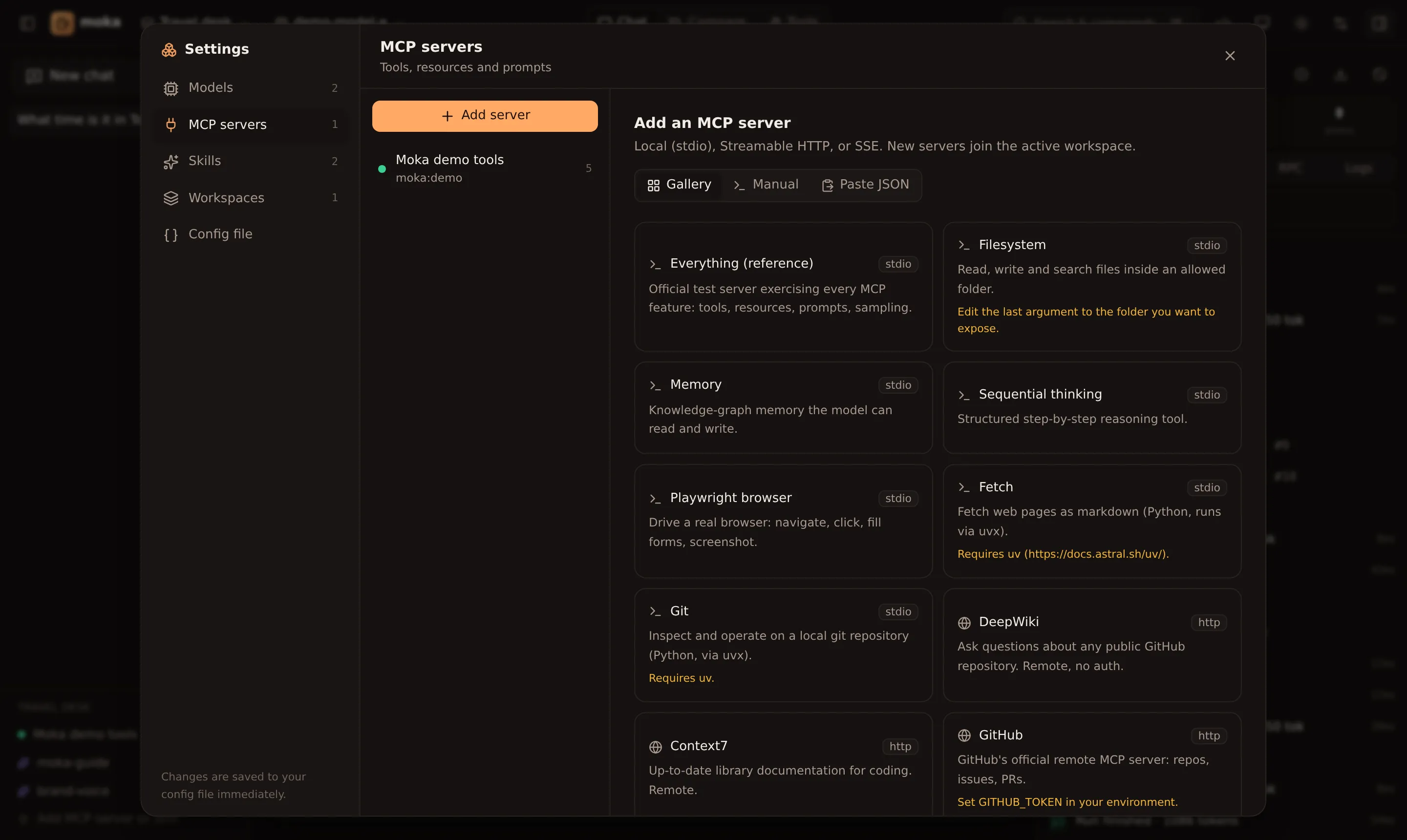
Moka is a full Model Context Protocol client. It supports tools, resources, prompts, server instructions, and MCP Apps (interactive UI).
Three ways to add a server
Section titled “Three ways to add a server”Settings → MCP servers → Add server → Gallery lists popular servers: Everything (reference), Filesystem, Memory, Sequential thinking, Playwright, Fetch, Git, DeepWiki, Context7 and GitHub. One click adds and connects it.
Choose a transport and fill in the form:
- stdio — a local process: command (
npx,uvx,node,python,docker…), arguments (one per line), environment variables, working directory. - Streamable HTTP — a URL (usually ending in
/mcp) plus headers. - SSE (legacy) — a URL (usually ending in
/sse) plus headers.
Click Test connection to connect without saving and see the tools, resources and prompts — or the error and stderr output.
Paste the config you already use elsewhere. Moka understands:
{ "mcpServers": { "filesystem": { "command": "npx", "args": ["-y", "@modelcontextprotocol/server-filesystem", "/Users/me/projects"] }, "linear": { "type": "http", "url": "https://mcp.linear.app/mcp", "headers": { "Authorization": "Bearer ${LINEAR_TOKEN}" } } }}{ "servers": { "github": { "type": "http", "url": "https://api.githubcopilot.com/mcp/" } } }On macOS your Claude Desktop config lives at ~/Library/Application Support/Claude/claude_desktop_config.json.
New servers are added to the active workspace and connected right away.
Secrets in servers
Section titled “Secrets in servers”Use environment references anywhere in command, args, env, url and headers:
{ "id": "github", "name": "GitHub", "transport": "http", "url": "https://api.githubcopilot.com/mcp/", "headers": { "Authorization": "Bearer ${GITHUB_TOKEN}" }}stdio servers inherit a safe default environment (PATH, HOME, …) plus whatever you add under Environment variables.
Sign-in, approvals and more
Section titled “Sign-in, approvals and more”- Hosted servers that use OAuth get a Sign in button. See Sign-in, elicitation & sampling.
- Make the model ask before running tools with tool approvals.
- Attach a server’s resources with @ and use its prompts with / in the composer (Chat, files & replay).
Controlling tools
Section titled “Controlling tools”Once a server is connected, its tools are listed in its settings page:
- Switch — hide a tool from the model (for example
delete_repository). Hidden tools can still be called from the Tool runner. - Try — jump to the tool runner with that tool selected.
Tools are exposed to models as <serverId>__<toolName> (sanitised to letters, numbers, _ and -, max 64 characters), so two servers can safely have tools with the same name.
Context budget
Section titled “Context budget”Every tool definition is sent to the model with every message, before the conversation even starts. The badge on an empty chat shows the total (15 tools · 2 servers · ≈3.2k tokens); click it to see where the tokens go: system prompt, skills, server instructions and each tool, biggest first, with a switch to hide each tool. Settings shows the same estimate next to each tool.
It warns when the total takes more than half of an 8K context window (a common setting for local models), or when there are more than 40 tools, where models start picking the wrong one. Estimates use about 4 characters per token; the inspector has each step’s exact input tokens.
Security check
Section titled “Security check”Moka checks each server’s tools for hidden instructions, invisible characters, requests for secrets, shadowing and changes since you first connected. See Security check.
Connection lifecycle
Section titled “Connection lifecycle”- Servers connect lazily — when a workspace that uses them is opened, when you chat, or when you click Connect.
- Changing transport settings reconnects automatically; renaming a server or toggling tools doesn’t.
- Server instructions (from the
initializeresult) are appended to the system prompt. - Every JSON-RPC message in both directions appears in the Inspector under RPC, and stderr lines under Logs.
Slow tools, progress and timeouts
Section titled “Slow tools, progress and timeouts”Moka asks every tool call for progress (it sends a progressToken), so servers can report notifications/progress. While a tool runs, its card in the chat shows a progress bar with the server’s message and a clock, and the updates appear in the Inspector linked to their request.
How long Moka waits is set per server under Advanced → Slow tools:
- Moka default: wait up to 2 minutes, and every progress notification restarts the timer.
- Like clients on the MCP SDK defaults: give up after 60 seconds even if progress arrives. Many clients behave like this, so it’s the setting to test with if users say your tool “stops at a minute”.
- Custom: your own timeout, whether progress restarts it, and a hard limit.
When Moka gives up, the tool card says so (No answer from … after 60.0s (tool timeout)), the request gets a timed out badge in the inspector, and a Moka gave up on tools/call #7 after 60.0s (timeout) marker shows the exact moment. If the server replies anyway, the reply is marked late.
See the headers that were sent
Section titled “See the headers that were sent”For Streamable HTTP and SSE servers, the server’s page in Settings → MCP servers has an HTTP section showing the last request to the server: method, URL, status, timing, and every header it actually carried. That includes your configured headers (marked your config) and the ones the client adds itself, such as Authorization after OAuth sign-in, mcp-session-id and mcp-protocol-version. Useful response headers (WWW-Authenticate, mcp-session-id) are shown too.
Secret values are masked (X-API-Secret: very••• (21 chars)), as are query-string values in the URL, so a screenshot is safe to share. If a configured header wasn’t sent, it’s listed as configured but not sent.
When a request fails (a 4xx/5xx response or no response at all), the connection error names the status, e.g. (HTTP 401), and an mcp.http event with the same details appears in the inspector.
Troubleshooting
Section titled “Troubleshooting”| Symptom | Fix |
|---|---|
spawn npx ENOENT | Node isn’t on the PATH Moka sees. Use an absolute path to npx, or add PATH under environment variables. |
spawn uvx ENOENT | Install uv (brew install uv). |
| Times out connecting | The first npx -y download can be slow; raise Timeout (ms) under Advanced. |
| HTTP 401 / 403 | Open the server’s HTTP section to see which headers were sent and what the server answered (WWW-Authenticate). Remember ${VAR} must be set in the environment Moka was started from. |
| Connects but no tools | The server may only expose resources/prompts — browse them in the Tools view. |
More in Troubleshooting.