
Server Studio
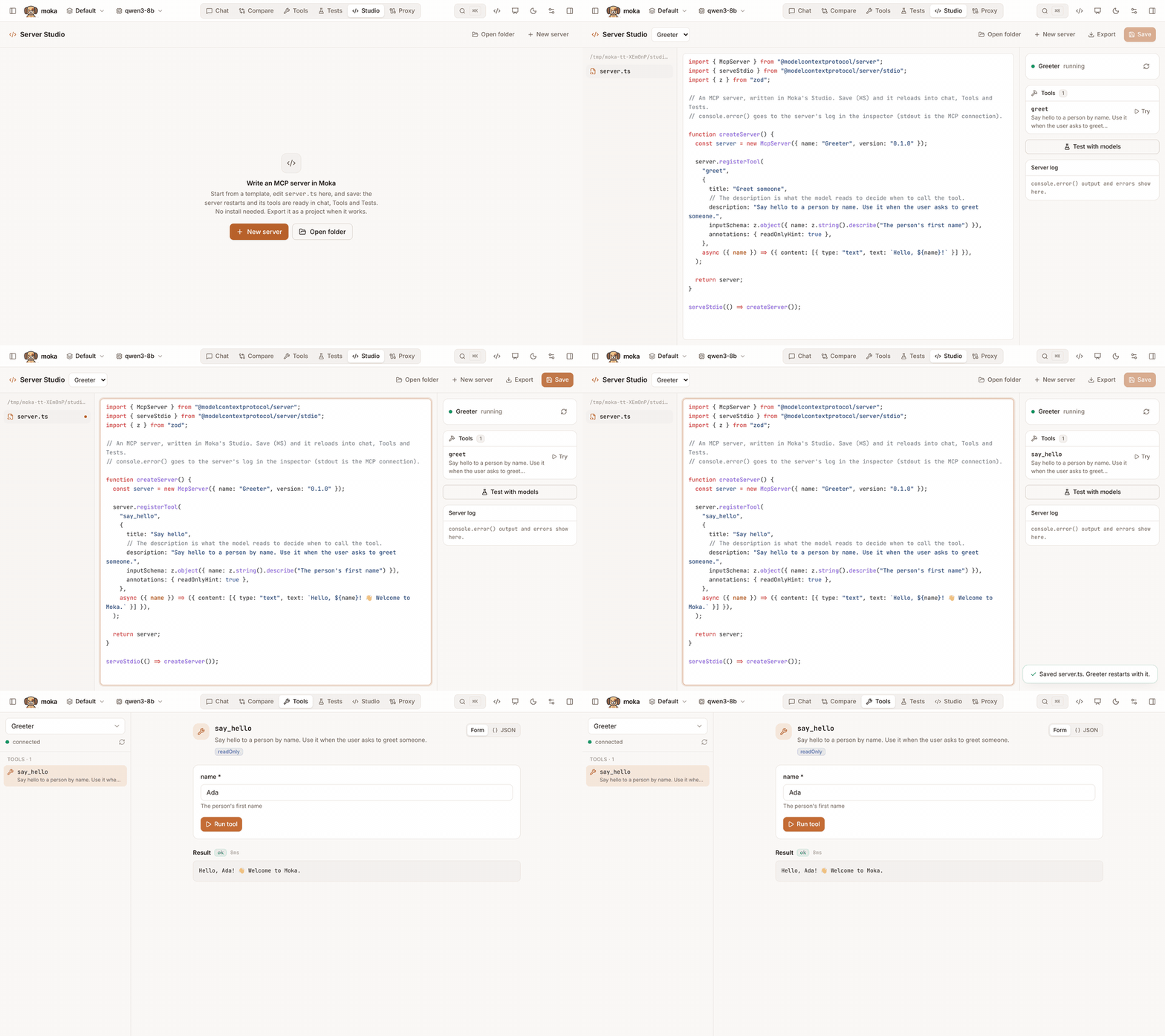
Studio (top bar) is the shortest way from an idea to a working MCP server: write a tool, save, and try it with real models, all in Moka.
- New server: pick a template.
- Blank: one tool, ready to change.
- HTTP API wrapper: a tool that calls a JSON API, with errors the model can act on.
- Read a folder: list and read text files in one folder, and nothing outside it.
- Edit
server.ts. It’s a normal MCP server using the official TypeScript SDK (@modelcontextprotocol/server) andzod. - Save (⌘S / Ctrl+S). The server restarts in about a second; its tools update in chat, Tools and Tests. Errors, with their line, and anything you
console.error()show in the Server log. - Try a tool in the Tools view, or Test with models to run the workspace’s tool tests on it, and Improve its wording.
- Export when it works: a
.zipwithserver.ts,package.json,tsconfig.jsonand a README with themcp.jsonsnippet for Claude Desktop, Cursor or VS Code.
How it runs
Section titled “How it runs”-
New servers go in
~/.moka/studio/<name>/, or a folder you choose (for example inside your repo). Open folder adds an existing folder with aserver.tsorserver.mjs. -
The server is a normal stdio entry in
moka.json, so everything else in Moka (approvals, faults, recording, the inspector) works on it:{ "id": "studio-my-tools", "name": "My tools", "transport": "stdio", "command": "moka:studio", "args": ["/Users/me/.moka/studio/my-tools"] } -
No
npm install. Moka supplies the MCP SDK andzod. Other packages work once the folder has its ownnode_modules, which is also used first when it has the SDK. -
Moka watches the folder: saving from any editor restarts the server too.